
Your iPhone is the controller.

One app turns the phone in your pocket into a lightgun, a full gamepad, a keyboard and mouse, and a second screen — for Batocera, Retrobat and Windows. No extra hardware, no dongles, nothing to wire up.

Free host software · iOS 16 and later · Works on your own local network

Download on theApp Store Coming soon onGoogle Play Soon Join us onDiscord
4
Modes in one app
60 fps
Streaming
2P
Local co-op
0
Extra hardware

Four controllers in one

Pick the mode the game needs.

Each mode shows up on your machine as a real, standard input device — so emulators and frontends see a gun, a gamepad or a keyboard, not a phone.

MiraGun

Aim at the screen. Really aim at it.

You point the phone at the display and the shot lands where you were aiming. No sensor bar, no camera pointed at your TV, nothing taped to the screen — a tracking engine built for this holds the aim steady after a one-time calibration.
MiraPad

A gamepad you design yourself.

Sticks, D-pad, shoulders, triggers and haptics — then move every button where your thumbs actually are. Save a layout per system, and hand it to a friend as a file or a QR code they scan off your screen.

MiraTap

Shoot by touching the game.

The picture comes to your phone and every tap is a shot, landing exactly where your finger did. No camera, no calibration, no room lighting to fight. Lie on the sofa and clear a level.

MiraKey

The keyboard you always miss.

A real multi-touch trackpad and the full iOS keyboard, for the moments no controller can help: typing a search, dismissing a dialog, driving the desktop from the couch.

Layout Editor

Every game gets its own pad.

Drag, resize and recolor every control. Build a racing layout, an arcade six-button, a one-thumb minimal — save as many profiles as you need, hit Apply, and the pad in your hands changes on the spot. Layouts travel: a file, or a QR code a friend scans across the table. You see a preview of what you are importing before it enters the app.

MiraConnect

The whole game, in your hands.

Low-latency streaming with your controls layered on top: play anywhere in the house, hand a second phone to a friend for co-op, or push the picture to a TV with AirLink and keep the phone as a pure controller.

MIRA Station

Installs itself. Survives reboots.

One tap in the app and MIRA sets itself up on your Batocera machine — permanently, plug and play. No SSH, no files to copy, no terminal. Turn it off any time from the system menu.


MiraConnect

Bring the game to the phone.

Low-latency streaming built the way the good ones are built: zero-copy capture, hardware H.264 and HEVC encoding, forward error correction, and a frame pacer locked to your display.

  • Play anywhere in the house. The picture follows you; the controls stay under your thumbs.
  • Local co-op, the AirDrop way. A friend sitting next to you joins as player two straight from their phone to yours — no Wi-Fi password to hand over, no address to type, nothing to set up on your router. Their own layout, their own profile, and the link between the two phones is encrypted end to end.
  • AirLink. Push the picture to a TV and keep the phone as a pure controller.
  • Away from home. Reach your machine over the internet with a port forward or IPv6 — no third-party service in the middle.

Who gets in

Your machine, your door.

MIRA never opens a machine on its own. Someone wants in, the machine asks you first — every single time, in the room, with a sound and a name.

Everyone knocks

A window opens on the machine with who is asking, from which address, and what they want to control. Allow, Deny, or ban that address for good. Nothing reaches your desktop until you decide — and whoever is not the owner joins as a guest, with the game in their hands and the machine's own controls out of reach.

A yes is used once

An approval lets that person in for that session and then it is spent. Close the app, disconnect them yourself, get dropped by a bad signal — the next attempt knocks again. It never quietly turns into a permanent key.

Pair your own phone once

Your machine learns to recognise your phone by a cryptographic signature, so you walk straight in without knocking on your own hardware. The key never leaves your phone — it is never sent, not even to the machine that trusts it. Both ends can forget it whenever you want.

Use a machine you keep for playing. MIRA shows a screen and accepts input on it — exactly what you want on the machine you game on, and not what you want on the computer holding your work and your passwords. It is a recommendation, not a limit: it stays your computer. The Terms and the Privacy Policy spell out the rest, including what is encrypted and what is not.


Setup

Three steps, once.

1

Install the host

On Batocera, the app installs it for you over the network — nothing to download, nothing to type. On Windows, it's a single file you double-click.

2

Open the app

Same Wi-Fi is all it takes. MIRA finds your machine by itself and connects; you can also enter an address by hand if you prefer.

3

Play

Pick a mode, pick a profile, go. Your machine sees a standard input device, so games and frontends need no special configuration.


Download

Get the host software.

The host is the small program that runs on the machine you play on. It's free, and it's the only thing you install outside the App Store.

Windows 10 / 11 · Windows only

MIRA Host for Windows

This download is for Windows machines only. One installer, nothing else to fetch: no .NET to add, no runtime, no dependencies. It walks you through what it does, installs for your user without asking for administrator rights, and sets up the virtual gamepad driver when you want it. An ordinary window you close when you're done. On Batocera you don't need it: the app installs everything by itself, plug and play.

Download the installer

Version 1.0.0 · MD5 F816EC0C8C0FD63FCF5C955B7CC563F9

Batocera · Plug and play

MIRA Station

Nothing to download here — it's plug and play. Open the app on the same network, tap install, and MIRA sets itself up on your Batocera machine: no files to copy, no SSH, no terminal. It survives reboots and stays out of the way.

How the install works

Installed from the app · Batocera 38 and later

Install it on a dedicated machine. MIRA Host exists to let the people you allow in see that screen and press keys on that PC — that is the whole point of it. We warmly recommend keeping it on a machine you use for playing, not on the computer that holds your email, your documents and your passwords.

About the Windows warning. The host is not code-signed yet, so SmartScreen will ask you to confirm the first time. Check the MD5 above against the file you downloaded if you want to be sure it's the real one — and only ever download it from this page.


Compatibility

What you need.

ComponentRequirementNotes
iPhoneiOS 16 or lateriPhone 8 and newer
Batocerav38 or laterGun, pad, keyboard and streaming
RetrobatSupportedThrough the Windows host
Windows10 / 11Gamepad needs a one-time driver install
NetworkWi-FiWired to the machine is recommended for streaming

Questions

Good to know.

Do I need any extra hardware?

No. Your iPhone and the machine you already play on, on the same network. That's the whole bill of materials.

Will the emulator actually see a lightgun?

Yes. MIRA creates a standard input device on your machine, so the emulator sees a regular gun, gamepad or keyboard and behaves exactly as it would with physical hardware.

How much lag is there?

Controller input travels over your local network in a few milliseconds. Streaming adds the usual video pipeline latency — it's low, but it isn't zero, so for the most demanding shooters aiming at the real screen beats aiming at a stream.

Can more than one person play?

Yes. Additional phones join as further players, each with their own layout and profile.

Does anything of mine leave my network?

Nothing reaches us. There is no MIRA account, no cloud service and no relay server: the app talks straight to your machine. If you deliberately open it to the internet to play from elsewhere, that traffic still goes directly between your phone and your machine, over your own connection — nobody sits in the middle. The Privacy Policy says exactly what is stored and where.

Who can connect to my machine?

Only people you let in, one at a time. Every connection knocks first and the machine asks you, in the room, with the name and the address of whoever is asking. You can deny, disconnect someone mid-session, or ban an address for good. An approval is used once — it never becomes a standing key.

Can I play from outside my home?

Yes, by forwarding the ports on your own router — there is no service of ours to sign up for. Two honest notes: everyone still has to be approved by you, and the session is not encrypted end to end, so run MIRA on a machine you keep for playing rather than the one holding your work. It is all written out in the Privacy Policy.

Do I need an account?

No. No sign-up, no login, no email, no analytics. The app and the host are two pieces of software talking to each other on your own equipment.

Is the host software safe to install?

It runs entirely on your own machine and only listens where you tell it to. The Windows build is published here with its MD5 checksum so you can verify the file you downloaded, and the installer shows you its terms and its list of open-source components before it does anything.

Ready when you are.

Install the host on your machine, then get the app from the App Store.

Download on theApp Store Coming soon onGoogle Play Soon Join us onDiscord
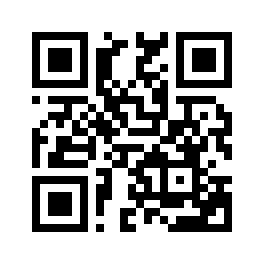
QR code linking to mirastation.com

Reading this on a computer? Point your camera at the code and this page opens on your phone — where MIRA is going to live anyway.